
Buying guide
Work-From-Home Ergonomics on a Budget
8 min read · Updated October 2026
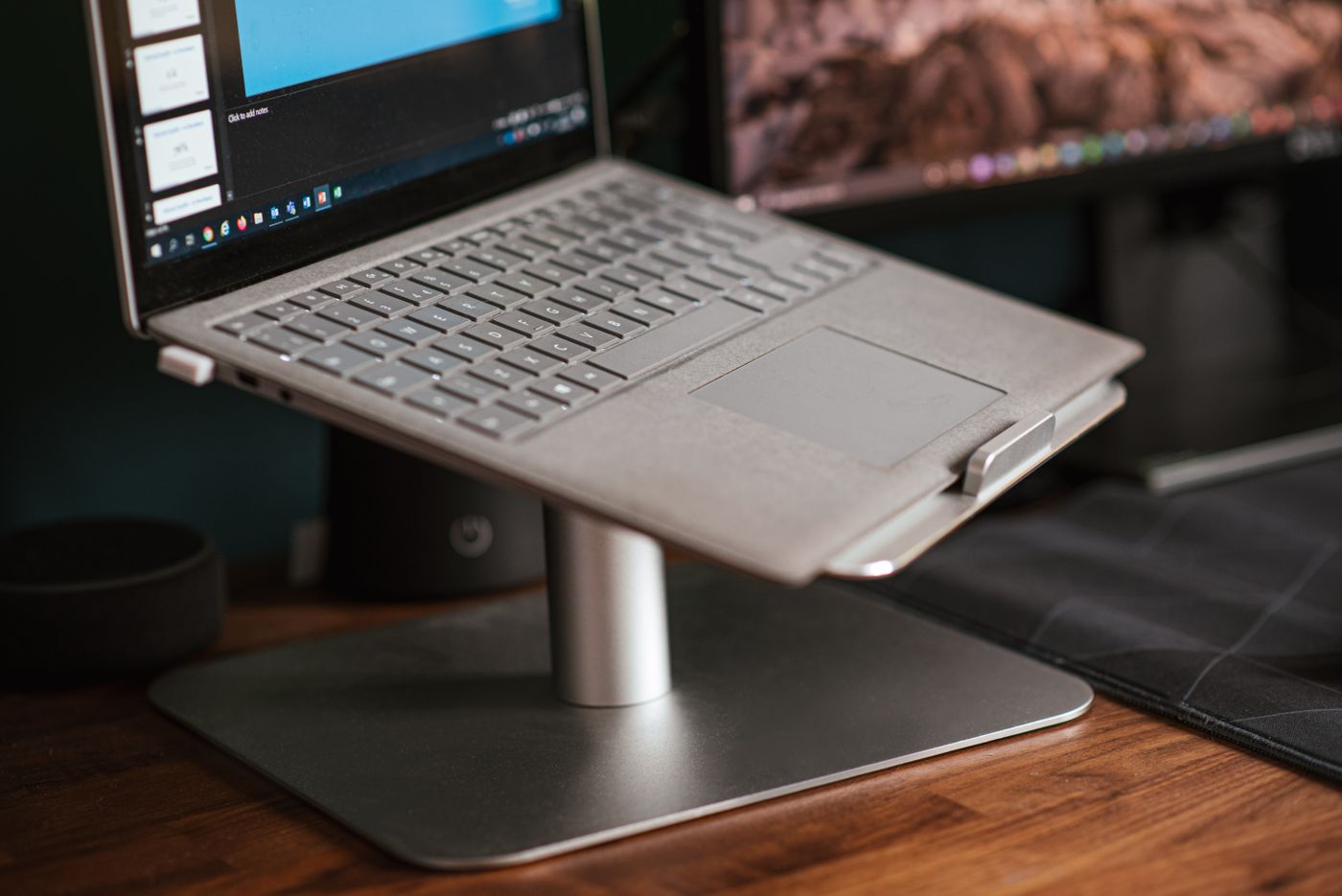
Working from a kitchen table or a small home desk is where most aches start: a sore neck from looking down at a laptop, tight shoulders from reaching for a mouse, wrist pain from a hard desk edge. You do not need a $1,000 chair to fix most of it. A handful of adjustments and four inexpensive items make the biggest difference.
This guide is general comfort advice, not medical advice. If pain continues, speak to a physiotherapist or doctor.
Step 1: get the screen to eye level
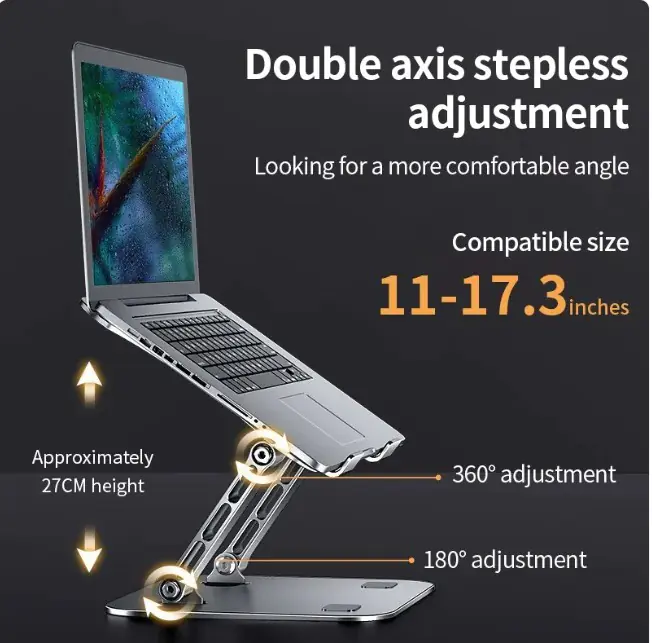
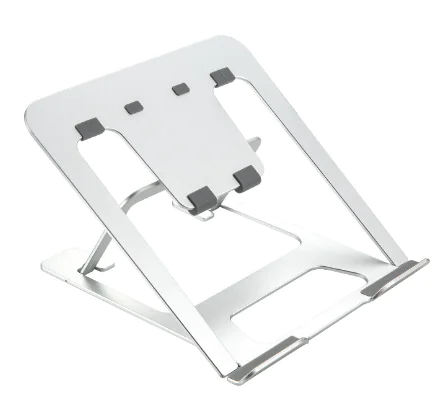
The top of the screen should be at or just below eye level, about an arm’s length away. Laptops force you to look down because the screen and keyboard are attached. Raising the laptop on a stand fixes your neck, but then you need a separate keyboard and mouse so your hands stay low.
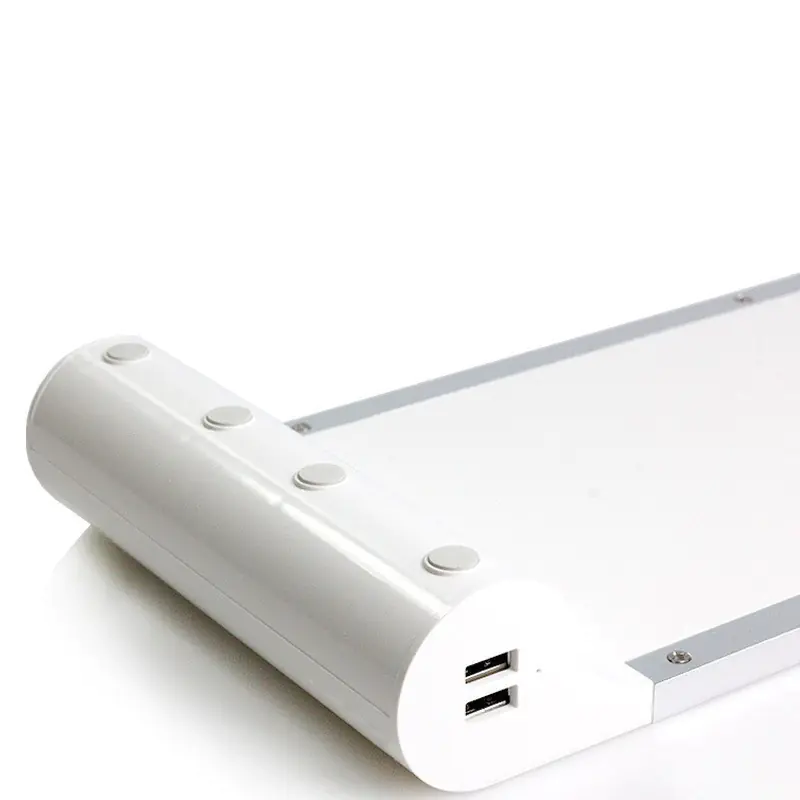
If you use an external monitor, a riser or a stack of sturdy books does the same job. Put the laptop on a stand beside it as a second screen.
Step 2: keep elbows at 90 degrees
Sit so your elbows are bent at roughly a right angle with your shoulders relaxed, forearms close to level. If the desk is too high, raise the chair and use a box or footrest so your feet stay flat. The keyboard and mouse should be close enough that you are not reaching forward.
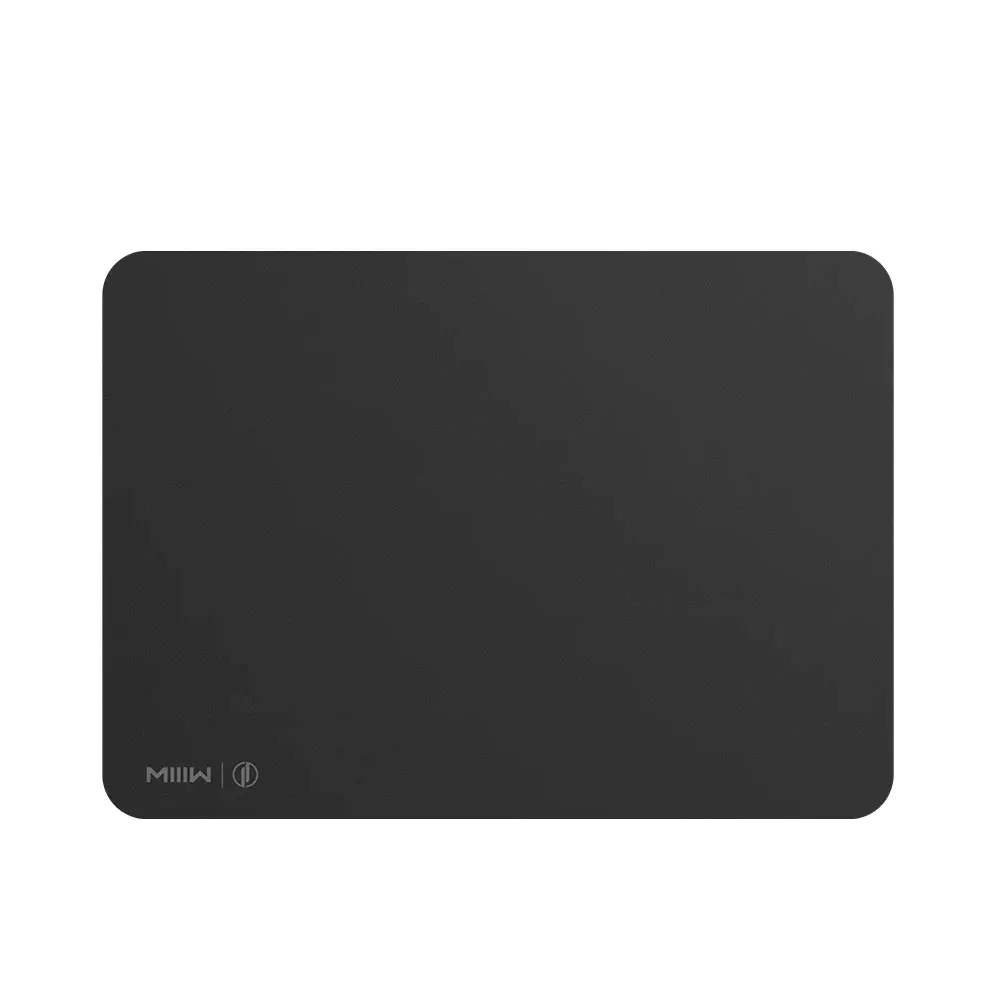
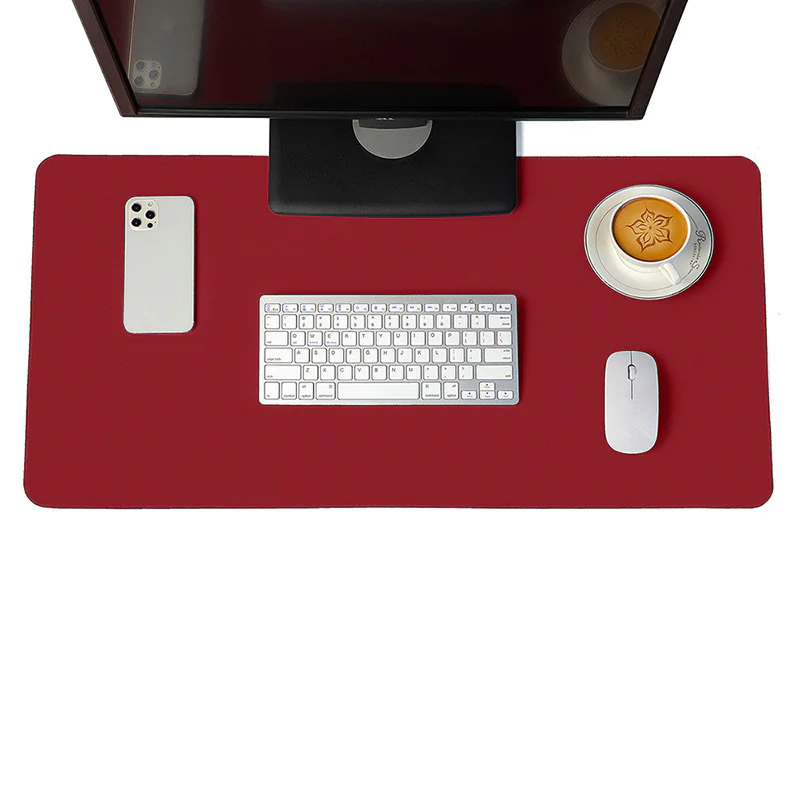
A large desk mat gives your wrists and forearms a soft, warm surface instead of a hard edge, and keeps the mouse and keyboard at the same height.
Step 3: a mouse and keyboard you don’t notice
A full-size wireless mouse that fits your hand is more comfortable than a laptop trackpad for long sessions. A quiet rechargeable mouse avoids cables dragging across the desk. A separate keyboard placed directly in front of you, with the screen above it, is the core of every ergonomic setup.


Step 4: one-cable connection
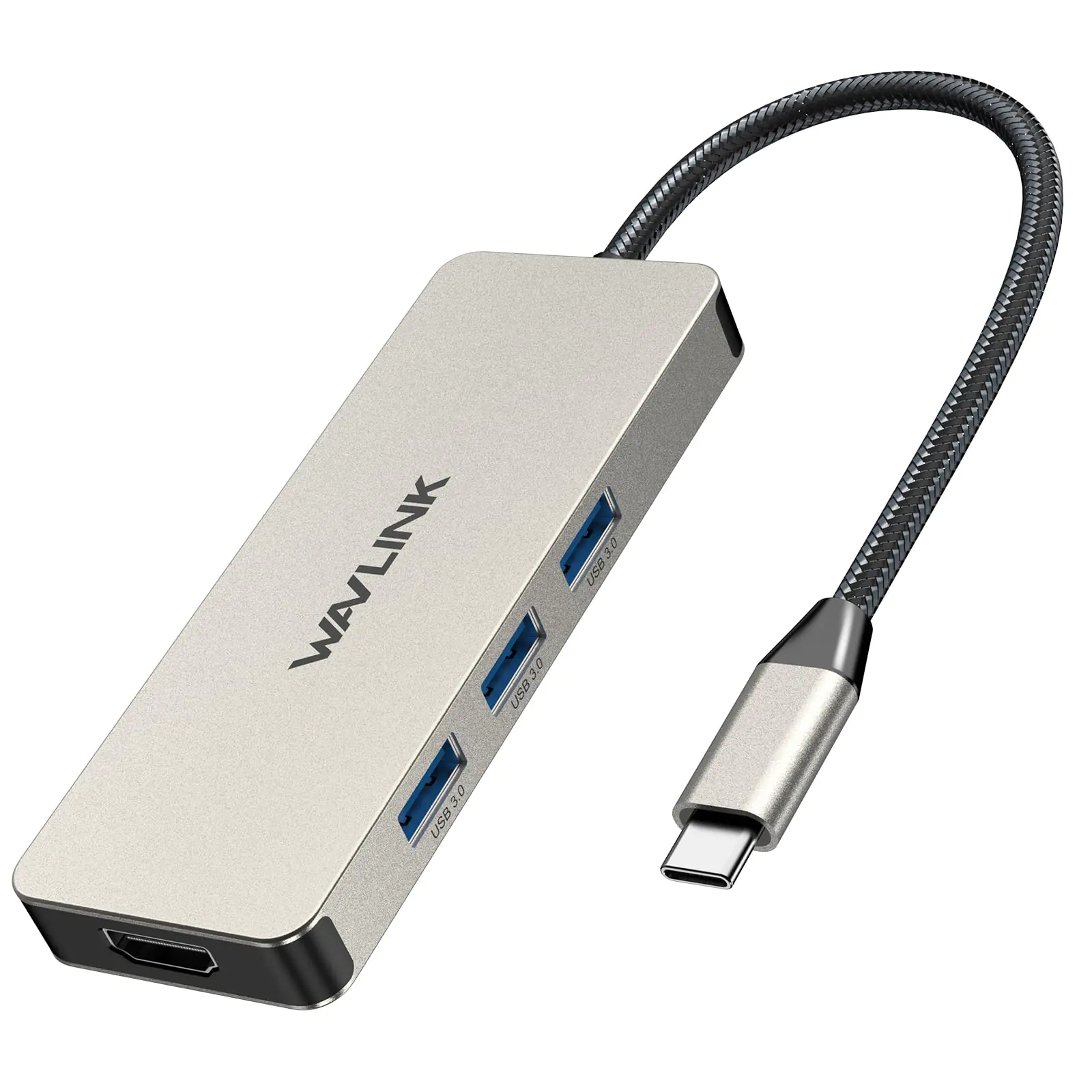
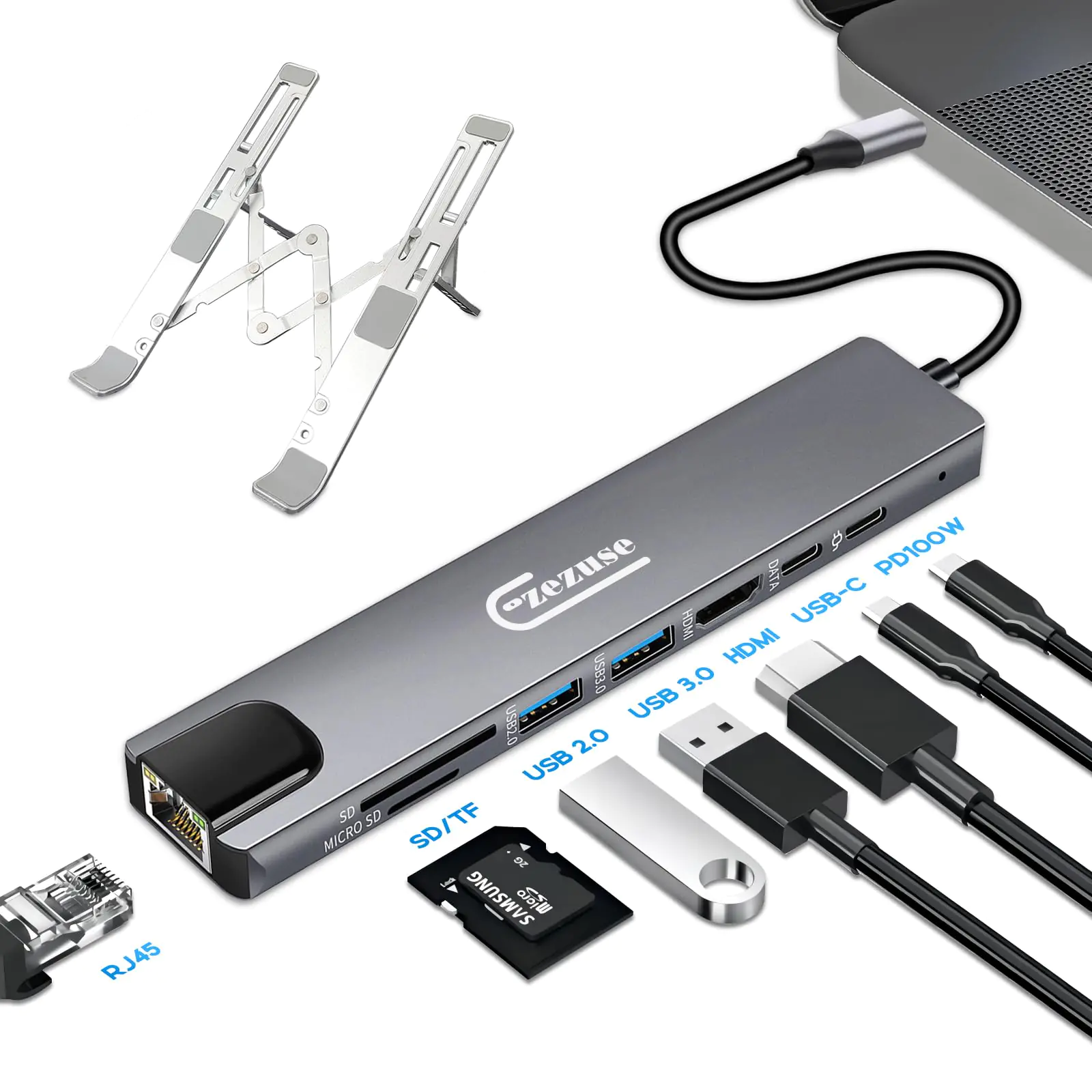
Ergonomics is also about habits. If plugging in takes five cables, you will end up working on the sofa. A USB-C docking station or hub connects monitor, keyboard, mouse, ethernet and charging through a single cable, so the good setup is also the easy one.
Light, calls and breaks
Place the desk so window light comes from the side, not behind the screen (glare) or behind you (reflections). Use a small lamp in the evening instead of maxing out screen brightness.
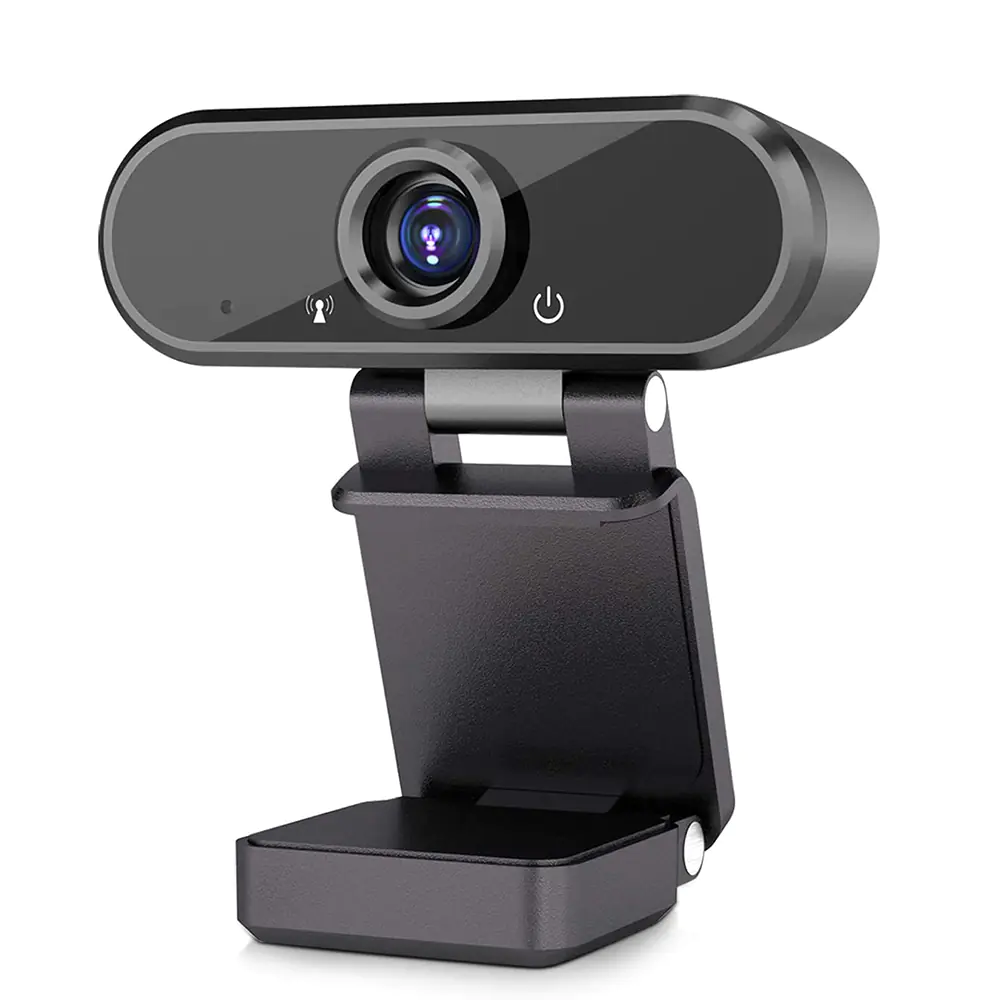
For calls, raise the camera to eye level. A 1080p webcam on top of a monitor looks far better than a laptop camera pointing up at your chin.
Every 30–45 minutes, stand up, look at something far away for 20 seconds, and roll your shoulders. The best setup still needs movement.
The budget upgrade order
If you buy one thing: a laptop stand plus a cheap keyboard and mouse. Two things: add a desk mat. Three: add a USB-C hub or dock. Four: add a webcam if you are on calls daily. The Work-From-Home Desk Kit bundles the essentials, and our minimal desk checklist covers the rest of the desk.
Your chair, without buying a new one
A good chair helps, but you can improve an ordinary one. Sit all the way back so your lower back touches the backrest. If there is a gap, a small cushion or rolled towel behind your lower back adds lumbar support. Raise the seat until your elbows reach desk height, then support your feet if they no longer rest flat.
Your knees should be roughly level with your hips. If you sit on a dining chair, a firm cushion can lift you to the right height for a higher table.
Laptop-only setups
If a monitor is not an option, a laptop stand with an external keyboard and mouse is still the best fix. When you travel or work from a café, a foldable stand and a compact Bluetooth mouse give you most of the benefit in a bag.
For tablets, a stand that raises the screen and a Bluetooth keyboard turn an iPad into a comfortable small workstation. Avoid long sessions with a tablet flat on the table.
Two monitors and standing desks
With two monitors, put the one you use most directly in front of you and the second at the side, angled in. Both tops should be at the same height. If you use them equally, centre the gap between them on your nose.
Standing desks help when you actually alternate, not when you stand all day. Aim for short standing periods during calls or reading, and keep the same rules: screen at eye level, elbows at 90 degrees, wrists straight. A desk riser that sits on top of an existing table is a cheaper way to try standing before buying a full desk.
A 2-minute setup check
Sit as you normally work and check: eyes level with the top of the screen; screen about an arm’s length away; shoulders relaxed; elbows at roughly 90 degrees; wrists straight, not bent up; feet flat; lower back supported; light from the side. Fix whichever line fails first; one change at a time is easier to stick with.
Frequently asked questions
What height should my laptop screen be?
The top of the screen should be at or slightly below eye level, roughly an arm’s length away. A laptop stand plus a separate keyboard and mouse achieves this.
Is a laptop stand bad for typing?
Typing on a raised laptop is uncomfortable, so pair the stand with an external keyboard and mouse kept at elbow height.
What is the cheapest ergonomic upgrade?
A laptop stand with a basic external keyboard and mouse. It fixes neck strain, the most common home-office complaint.